StillToReel team5 min read
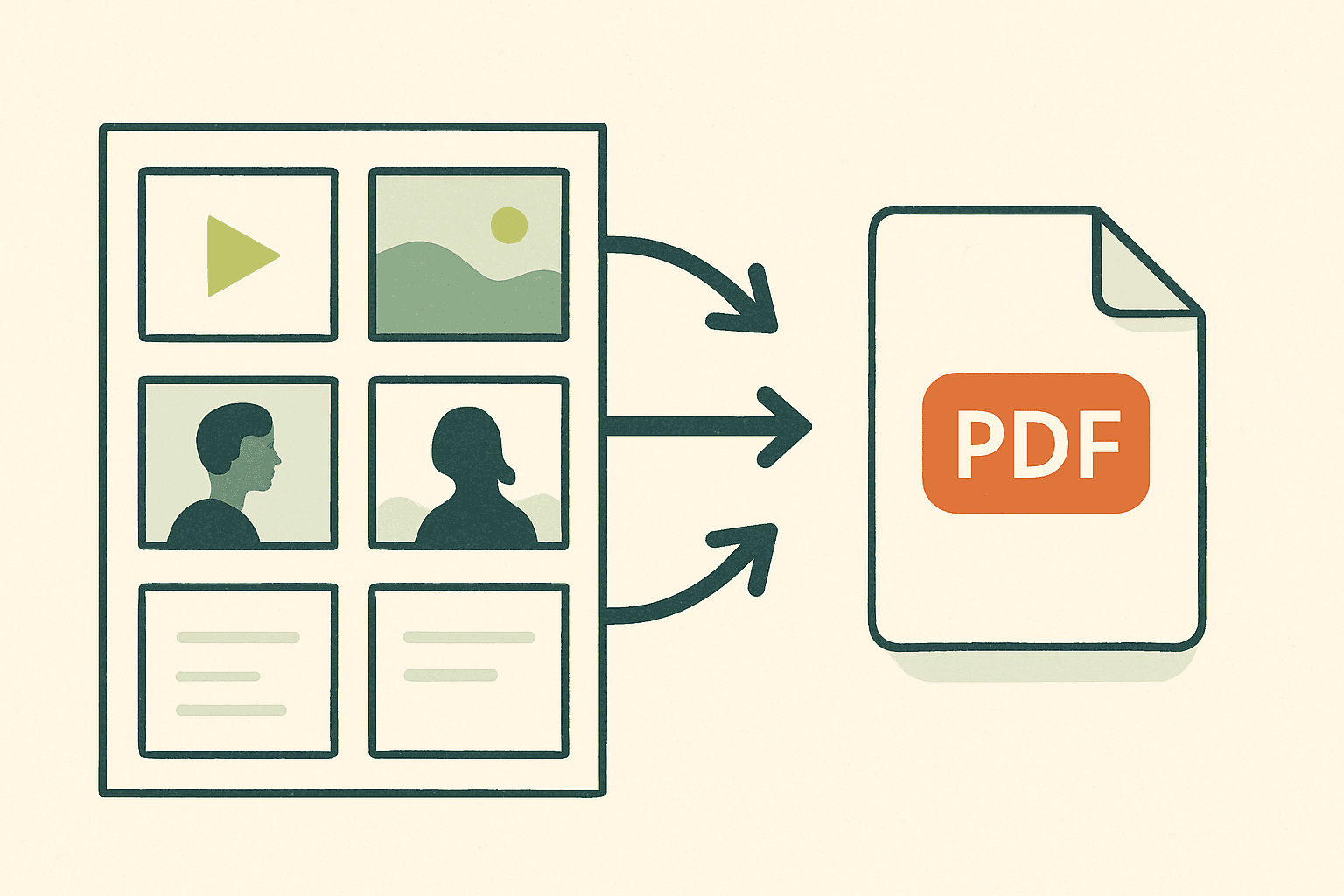
If you need to create a free PDF video plan for your Reels, TikToks, or YouTube Shorts, StillToReel gives you a straightforward workflow to export your video storyboard as a professional PDF, ready for sharing with clients or teams—without spending a cent. In this guide, you'll learn exactly how to plan your video, structure your shots, and export to a PDF file at no cost. Use this process to make your short-form video shoots organized and collaborative, whether you're a freelance creator, social media manager, or in-house producer.
Why Use a PDF Video Plan?
A PDF video plan is more than just a printable reference. It ensures everyone stays on the same page before production starts: clients, team members, and collaborators can review and approve the storyboard visually and in writing. PDFs are compatible across devices, easy to annotate, and ideal for sharing in emails or messaging apps. With a PDF plan, there's no confusion about the sequence, visuals, or timing of each shot.
Getting Started with StillToReel's Free PDF Export
StillToReel is a planner built specifically for short-form video creators who need to map out quick-turn content. Its free tier lets you build shot-by-shot storyboards, add sketches or reference images, write shot notes, and export to PDF—without a paid account. Signing up takes less than a minute, with no credit card needed. Create your free StillToReel workspace to start planning your project.
Organize videos by project, client, or platform
Add, rearrange, or branch shots for alternative versions
Invite team members or clients to review and comment
Export, print, or send the PDF as needed
Step 1: Map Out Your Video Structure
Begin by breaking your video idea down into a logical sequence of shots. Each shot should have its purpose—hook, message, call to action, or transition. In StillToReel, create a new project board, give it a descriptive name, then start filling in the shot list. Add as many shots as your concept requires.
Name each shot (e.g., "Intro—Grab Attention")
Estimate shot durations to fit platform limits (Reel: up to 90s, TikTok: up to 3min)
Note key visuals, camera angles, or movement
Write any dialogue, text overlays, or script beats
This granular planning ensures your PDF video plan is practical, not generic.
Step 2: Add Visual References and Shot Notes
For each shot, you can upload a reference image or use a hand-drawn sketch as a placeholder. This is especially useful if you're collaborating with a remote team or non-technical client—the visuals clarify what you mean, reducing scope for misinterpretation.
Use the "notes" field for reminders about props, wardrobe, or special requirements (e.g., "Outdoor shot—need natural light at golden hour"). These extra details make the PDF actionable as a shot list during production.
Step 3: Review, Refine, and Create Alternative Versions (Optional)
If your client wants to see different creative options, StillToReel lets you branch boards for alternate cuts. For example, you can test a version with and without text overlays, or try different hooks for the opening shot. This flexibility lets you export multiple PDF versions for review, keeping feedback focused and fast.
Use the versioning tools to save time—no need to duplicate your whole plan from scratch for every suggested tweak.
Step 4: Export Your Video Plan as a PDF File
Once your board is ready, hit the export button and select "PDF". You can choose summary or detailed layouts, which control how much shot info appears on each page—customize based on your client's needs. The PDF will include:
Project and video title
Each shot's name, notes, and uploaded images/sketches
Durations and any additional comments
Team or client branding (optional)
The download is immediate. Your file is ready to email, upload, or print. If you need to adjust the board, you can make edits and re-export a new PDF instantly—there’s no watermark or forced upgrade on StillToReel’s free plan for basic PDF exports.
Sharing and Collaborating on PDF Video Plans
With your PDF video plan complete, you can send it to clients, camera operators, on-screen talent, or editors. The uniform layout means everyone works from the same script and visuals. If you want interactive feedback, share a review link from your StillToReel board—clients can add per-shot comments online before you export the final PDF. This streamlines revisions and ensures the PDF matches the approved concept. See all collaborative features on the features page.
Recommended Shot List Template for Short-Form Videos
Short-form videos thrive on clear, fast storytelling. A robust PDF shot list template should include:
Shot ID or number
Description (what happens in the shot)
Reference image/sketch
Duration (in seconds)
Notes (dialogue, actions, cues)
StillToReel’s board aligns with this format out of the box, making your PDF exports directly usable on set.
Troubleshooting: What to Do If Your PDF Export Isn't Working
If your PDF file isn’t generating correctly, try these steps:
Double-check that all required shot fields are complete
Clear your browser cache (occasionally, exports hang with old data)
Ensure images are in supported formats (JPEG, PNG preferred)
If using a tablet or mobile, try from a desktop for best results
If the issue persists, check the StillToReel FAQ for known issues and troubleshooting tips. Their support responds quickly to workflow questions.
Advanced Tips for a Professional PDF Video Shot List
Include estimated timings for each shot to avoid overrunning platform limits
Brand your PDF with your agency or client logo (supported on higher tiers)
Use color coding in your shot notes for location or status (e.g., green for confirmed, yellow for pending)
Export an MP4 animatic from the same board (see how) to visualize timing alongside your PDF
These steps can help your plans stand out and earn smoother client approvals.
Conclusion: Streamline Video Production with a Free PDF Plan
Creating a free PDF video plan with StillToReel is straightforward and highly effective for short-form video teams. By organizing your ideas visually and exporting professional shot lists, you keep projects on track—without additional software or cost. Ready to standardize your social video planning? Set up your free StillToReel account now and export your first video plan in minutes.