StillToReel team5 min read
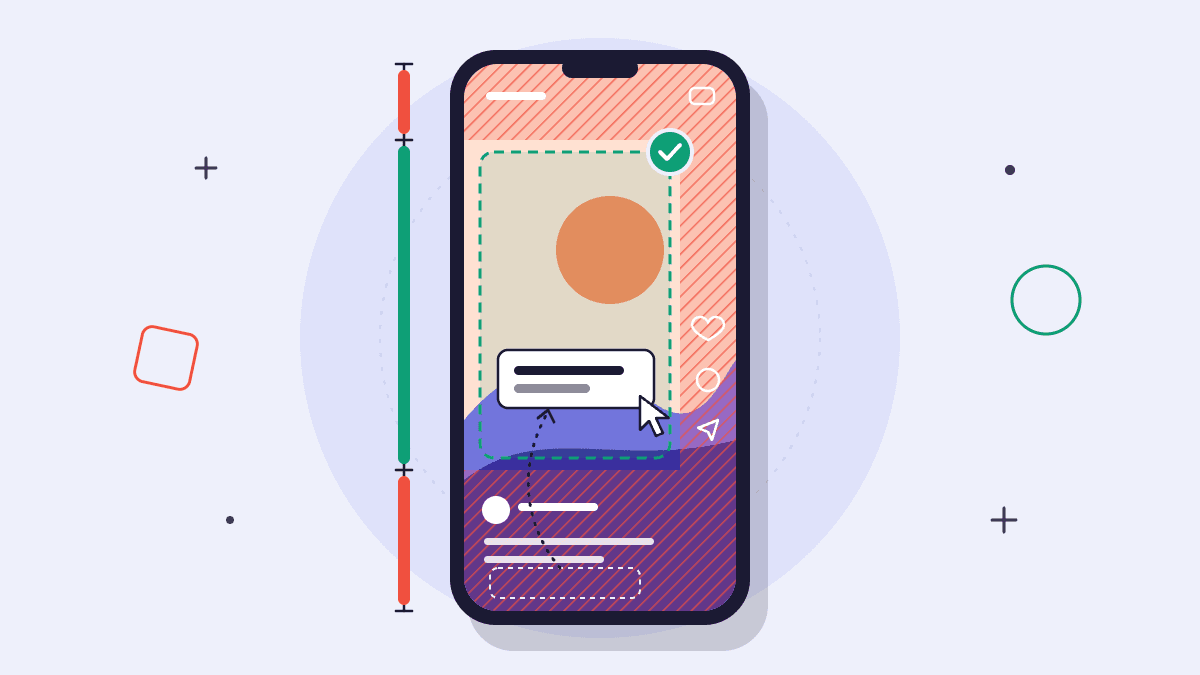
The Reel Safe Zone Checker instantly shows you which parts of your Instagram Reel will be covered by app buttons, captions, or cropping on different devices. You can drop in your frame, overlay safe zones, and spot at a glance if key visuals or text will get cut off—saving you reshoots and angry client emails.
What Is the Reel Safe Zone Checker and Why You Need It
When you publish a Reel, Instagram overlays action buttons, account names, captions, and engagement counts on your video. Viewers on different devices may see more or less of your frame. If your on-screen text or calls to action fall under these overlays, they’re unreadable. The Reel Safe Zone Checker helps you plan your framing, graphics and text placement so nothing important is missed.
It identifies which video areas are visible on all devices, and which are at risk.
You import a frame or mockup, then it overlays current safe zones for Reels: clear, partially covered, and hidden regions.
It’s faster than exporting to your phone and test-uploading draft videos to Instagram.
This tool is especially valuable when you hand off edits to clients or team members; everything vital can be signed off as visible before publishing.
How to Use the Reel Safe Zone Checker: Step-by-Step
Grab a frame grab, title card, or exported animatic image from your video sequence.
Head to the Reel Safe Zone Checker tool.
Upload or drop your image onto the checker. It shows standard Reel dimensions and overlays the current UI/safe zone areas.
Check that all on-screen text, logos, faces, and essential objects are inside the green (safe) area. If something overlaps a yellow or red zone, move or resize it in your editing project.
Repeat for each shot or screen that includes important graphics or messaging.
For team workflows, export reference images with overlays to attach to call sheets or approval docs.
Instagram Reel Safe Zone Template (Exact Dimensions)
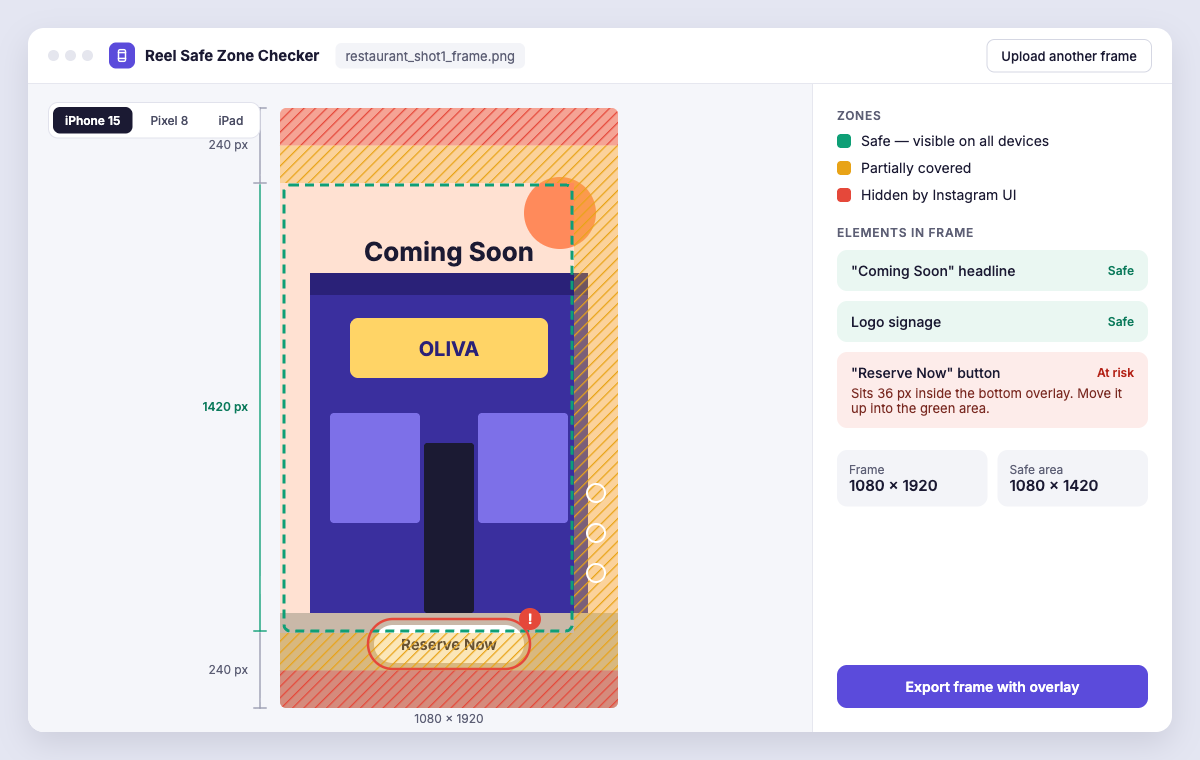
Reel videos upload in 1080x1920 pixels. But different overlays block portions of that space, depending on device and screen mode. Here’s a breakdown for most phones (2024 Instagram app):
Safe zone: Centered 1080x1420 px (from roughly 240 px from top and bottom edges). Keep all captions, logos, calls-to-action, and tight shots here.
Partially covered: Top 240 px (profile info, likes, follow), bottom 240 px (caption, quick actions), and edges (variable).
Avoid putting anything critical outside a 1080x1420 px rectangle centered vertically—it will likely be hidden or cropped on some devices.
You can save time with this quick checklist when laying out graphics:
Text: No closer than 240 px from top or bottom edge
Logos/Watermarks: Inside vertical center, left or right, preferably with some margin from edges
Heads and faces: At least 200 px clear space from top/bottom so cropping doesn’t trim heads off
Any CTA button overlays: Pre-visualize with the checker if you’re using in-app effects or third-party add-ons
Download the above safe zone guide as a transparent PNG to overlay on your editing software for fast checks—or use the tool directly for speed.
Worked Example: Planning a Reel for a Restaurant Launch Announcement (15 seconds)
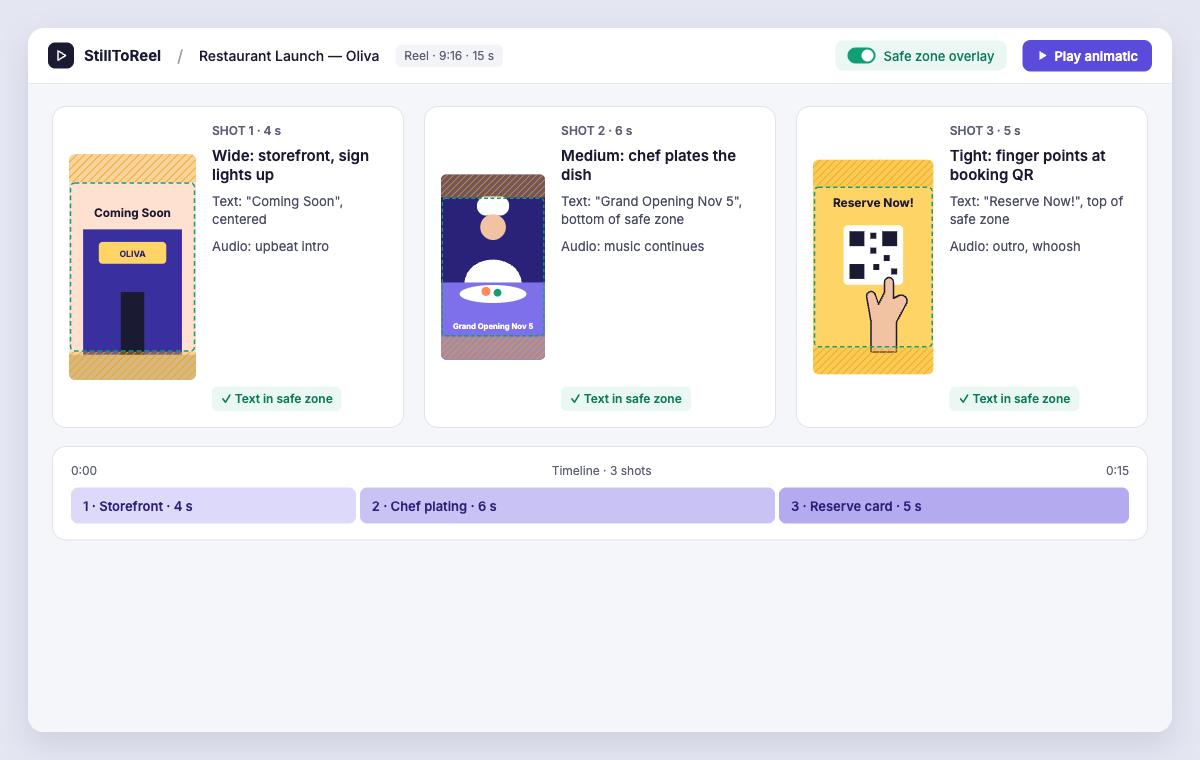
This brief Reel promotes a new restaurant location and needs all text and the call-to-action button to be visible on all devices. Planned with three shots and the safe zone checker. Total length: 15 seconds.
Shot Framing Duration Action On-screen text Audio 1 Wide: Empty storefront, centered signage in safe zone 4s Signboard lights up, reveal of logo "Coming Soon" (centered, safe zone) Upbeat music intro 2 Medium: Chef plating dish, action in vertical middle third 6s Chef garnishes dish, camera tilt down to plate "Grand Opening Nov 5" (bottom of safe zone, not touching overlays) Music continues 3 Tight: Reservation link card, thumb up, finger points 5s Thumb points at booking QR code, text above finger "Reserve Now!" (top of safe zone) Music outro, whoosh sound
Every piece of on-screen text is checked in the Reel Safe Zone Checker before final export. This avoids captions being cut off by Instagram overlays.
Common Mistakes with Reels Safe Zones and How to Fix Them
Captions or graphics too close to the edge: Pull text at least 240 px in from the top or bottom. If using Canva or Premiere, set up a guide or use the checker in parallel.
Split-screen or talking head content placing faces under overlays: Use a mockup or checker to nudge framing so faces stay wholly inside the vertical safe zone—prevents heads or mouths from being obscured.
Not checking for device differences: Some team members test on iPad or Android, others on iPhone. Share a checker overlay or PDF so everyone reviews exactly the same safe boundaries.
Jumping straight to posting without test uploads: Instead, use the Reel Safe Zone Checker during the storyboard or animatic stage. This way, reshoots aren’t needed if a graphic gets hidden by Instagram’s UI later.
Assuming the "safe zone" is the whole frame: Always check the latest overlays, as Instagram may shift UI with updates. The checker tool stays current and can save time on client review cycles.
Integrating Safe Zone Checking Into Your Reel Production Workflow
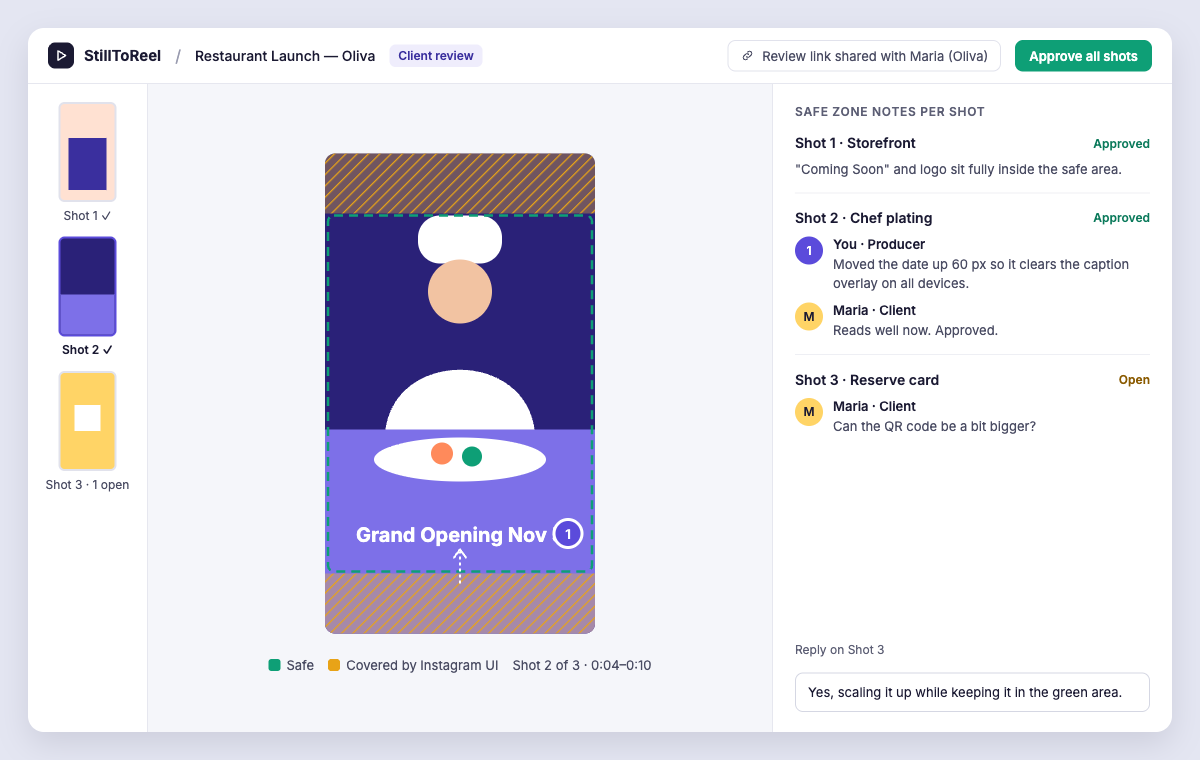
To avoid last-minute fixes, make the safe zone check part of pre-production. When you storyboard, add a blank safe zone overlay to each sketched frame. StillToReel’s shot-by-shot board lets you drop in safe zone guides and get instant animatic previews to see if key visual elements stay visible across cuts.
Use safe zone reference images during client review, so everyone can sign off with full context
When delivering video to a client, include a final export with visible safe zone overlays for double-checking
If you post frequently, link the checker tool in your team SOP so no one skips this crucial step
For content teams and agencies, this process reduces review rounds for text-over-image, call-to-action cards, and dynamic overlays. The same principle applies whether you organize your shots in StillToReel or export a reference PDF as shown in this guide to creating a free PDF video plan.
Takeaway: Always Check Your Safe Zones for Error-Free Reels
Every video producer has lost a client’s logo or caption under Instagram’s overlays at least once. The Reel Safe Zone Checker lets you prevent it in two clicks—review every text and graphic element before you export. It speeds up approvals and prevents ugly surprises post-upload.
If you need a full workflow for short-form planning, try an integrated board like StillToReel with its animatic preview and per-shot notes. For most creators, though, running your final frame through the safe zone checker can save hours and keep your content error-free.