Maya Bennett13 min read
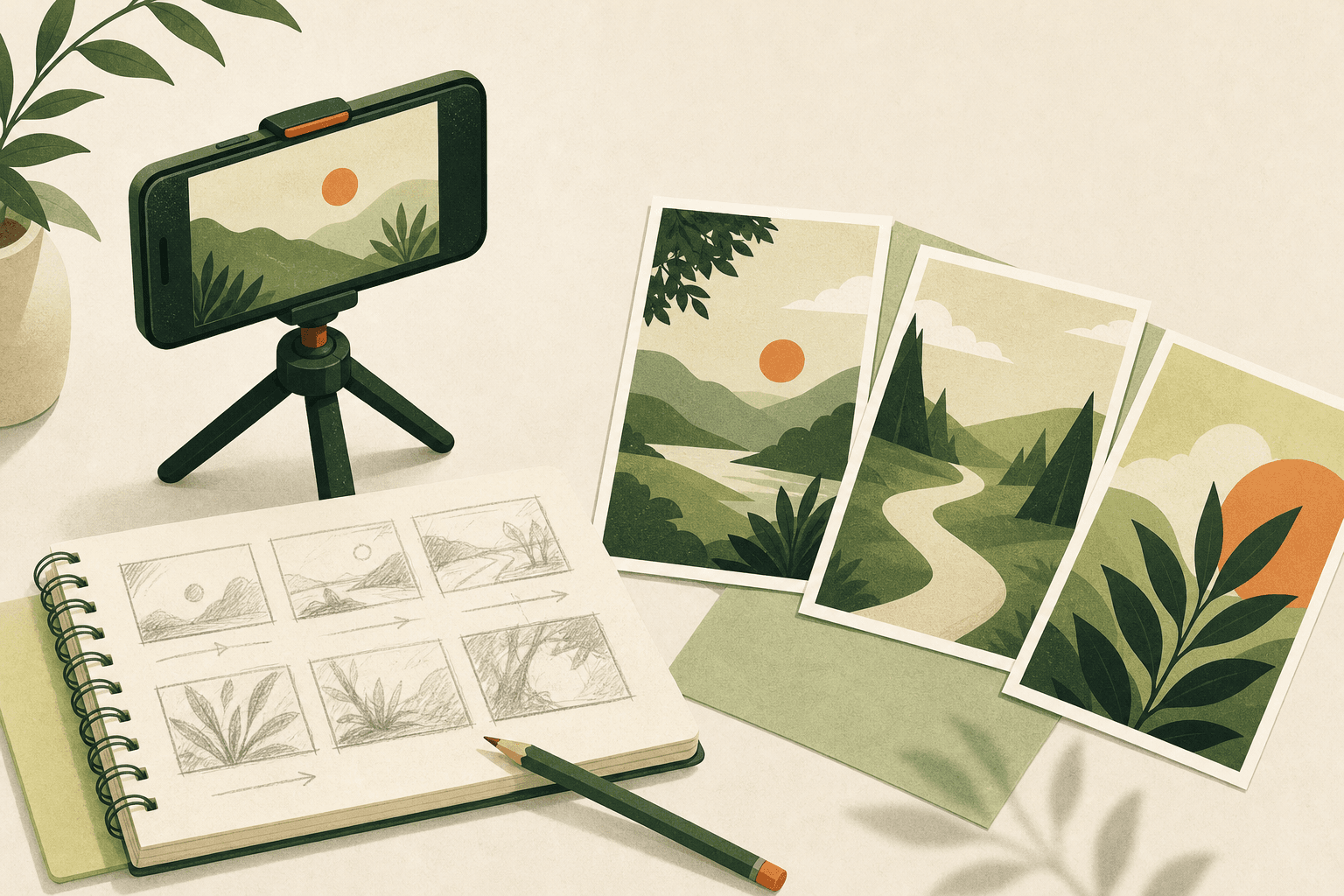
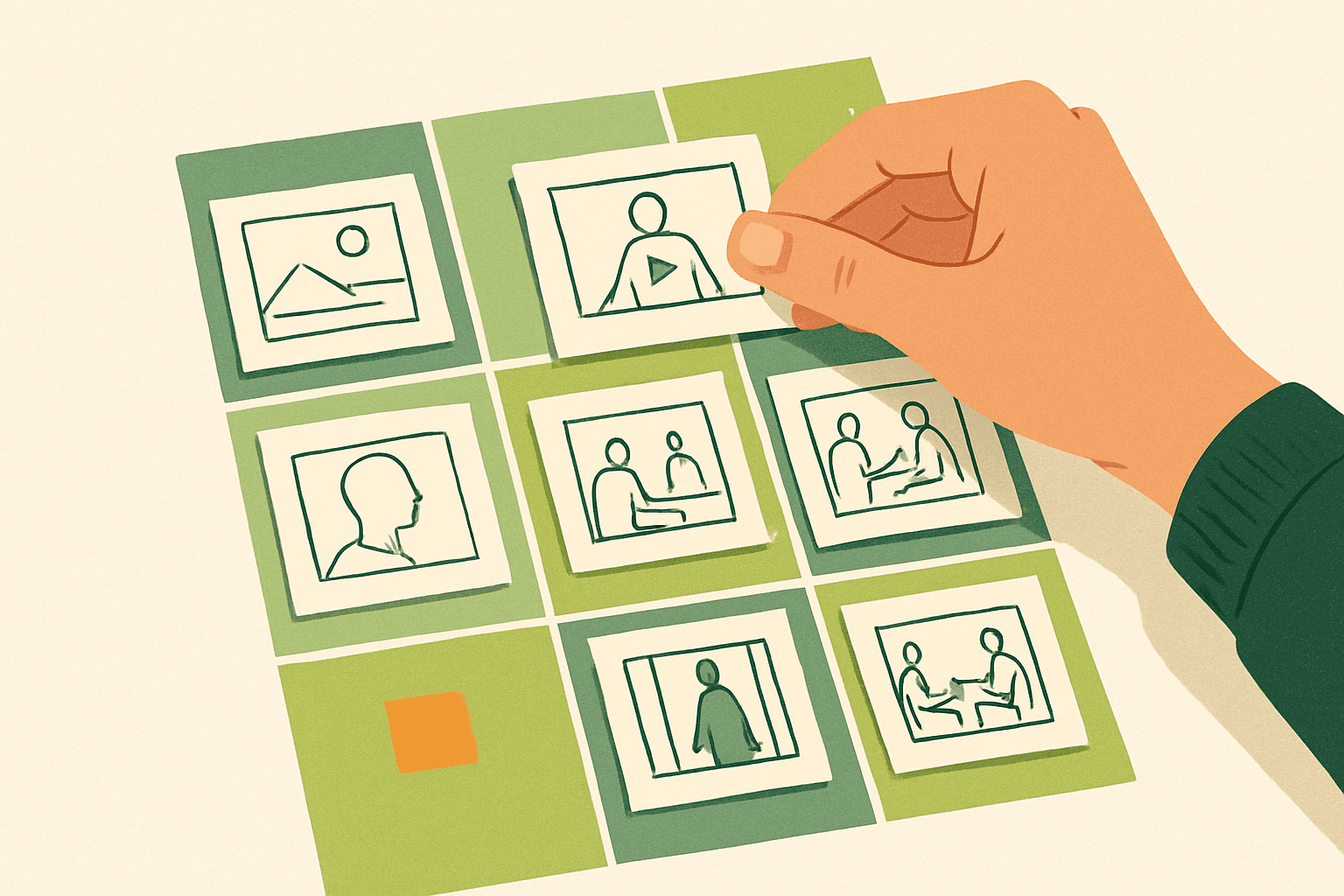
An AI storyboard generator is useful when your rough sketch is clear enough to show the idea but not clear enough for a client, editor, or camera operator to read. It turns a simple frame sketch into a more legible storyboard image, so you can test framing, pacing, and b-roll before filming instead of discovering problems in the edit.
The point is not to make pretty concept art. The point is to make faster production decisions: what needs to be filmed, what can be cut, what needs a close-up, and what the editor will need to make the Reel feel intentional.
Where an AI storyboard generator helps most
On client shoots, the weakest frame is usually not the one with bad art. It is the one where nobody can tell what the shot is supposed to prove.
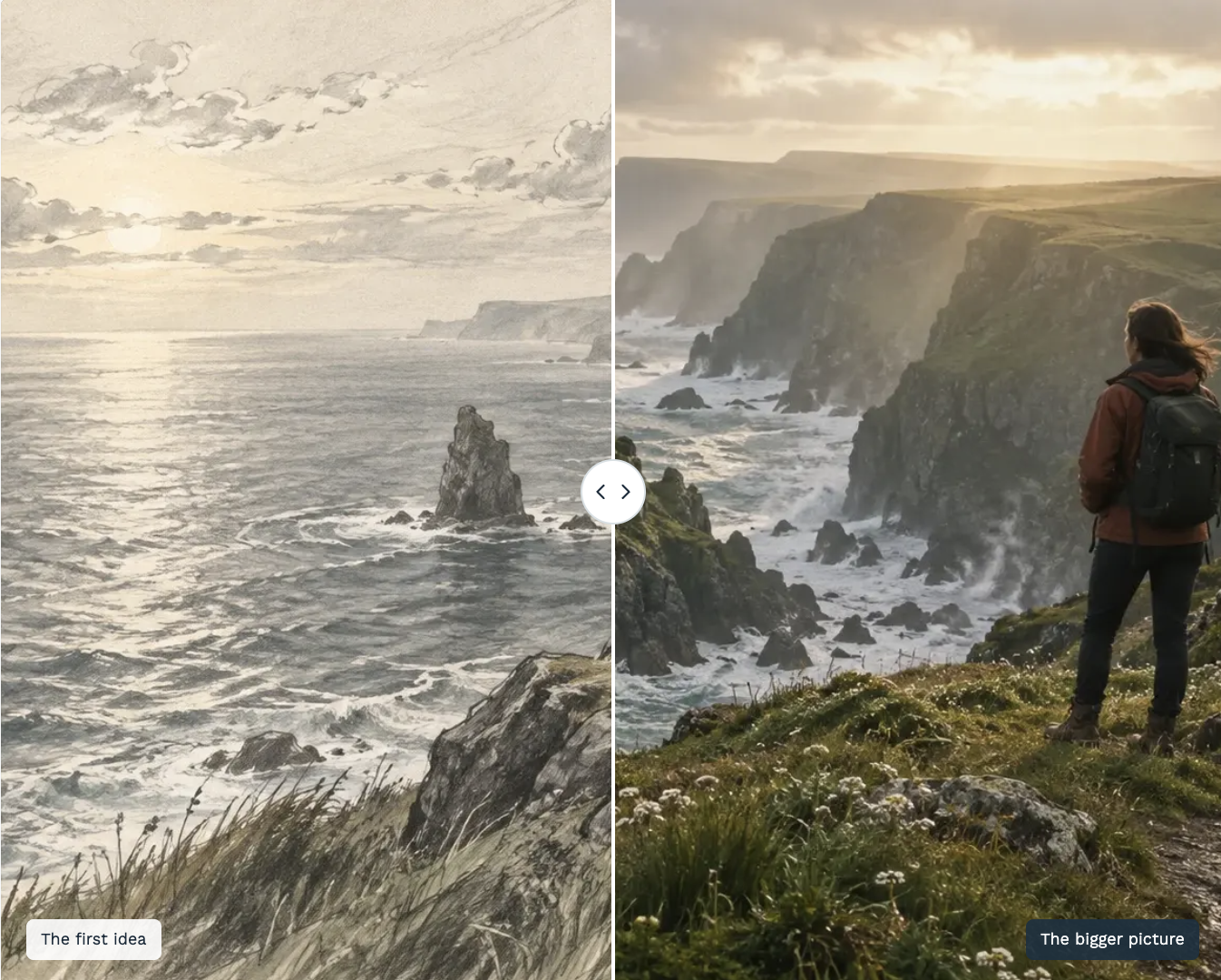
An AI storyboard generator helps because it turns a rough storyboard sketch into something specific enough to discuss. A stick figure at a counter becomes a creator holding the product in a medium shot. A box labeled “phone close-up” becomes a readable hand, screen angle, and background.
Use it when the team needs to answer one of these 7 production questions before filming:
Is the hook readable in the first 1-2 seconds? If the first frame needs a paragraph to explain, redraw it.
Do we have enough coverage? For a 15-second Reel, plan 4-7 shots. For a 30-second Reel, plan 7-12 shots.
Can the editor cut on action? Add at least 2 movement shots: hand enters, object lands, door opens, tool touches product.
Is the subject too small? If the AI-filled frame makes the product disappear, switch to a close-up.
Does the b-roll match the claim? A line like “made in-house” needs process footage, not only a final beauty shot.
Will the client understand the idea without a call? Each frame should need no more than 1 short note.
Can a small team film it with a phone? Mark any shot that needs a tripod, second person, prop, or location change.
That is the real value of a video storyboard: it compresses the messy discussion before production. You are not asking the client to imagine the frame from your notes. You are showing the intended frame early enough to change it.
If you are planning an entire short-form piece, pair the generated frames with a written shot list. A frame shows “what we see.” The shot note explains “why it exists.” For a practical planning flow, the guide to planning a Reel before filming covers how to connect hook, shots, captions, and edit rhythm.
How to turn a rough sketch into a usable AI storyboard generator frame
A good AI storyboard generator frame starts with a bad sketch that has the right information. Do not spend 20 minutes drawing fingers. Spend 20 seconds marking subject size, camera angle, and the action inside the shot.
Use this 5-part sketch formula before you ask AI to refine the frame:
Frame shape: Draw a vertical 9:16 box if the final video is for Reels, TikTok, or Shorts.
Subject size: Mark wide, medium, close-up, or extreme close-up.
Action arrow: Show one movement direction, such as “hand pulls lid” or “camera pushes in.”
Object labels: Name anything the viewer must recognize: mug, invoice, phone, lipstick, dog leash.
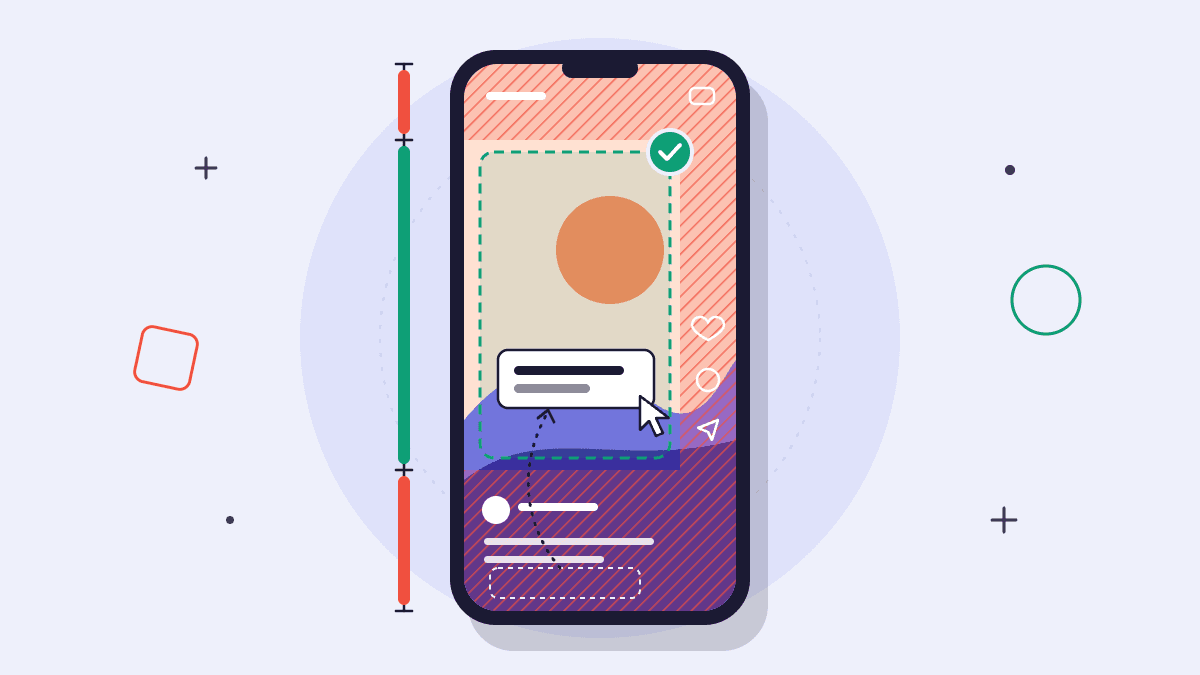
Text zone: Leave the top or center clear if you need 3-7 words of on-screen text.
Here is a simple frame note template you can copy:
Shot: Close-up of hands opening the product box on a wooden table. Purpose: prove what is inside. Movement: pull tab toward camera. Text room: top third clear. Duration: 2.5 seconds.
When you sketch in StillToReel and let AI complete the frame, keep the result production-safe. If the generated image adds a new prop, a second actor, a bright window, or a location you do not have, reject it or simplify the prompt.
Use these prompt patterns for AI storyboard frames:
Product close-up: “Vertical storyboard frame, close-up of hands holding a matte black skincare bottle over a bathroom sink, natural morning light, simple background.”
Creator talking hook: “Vertical storyboard frame, medium shot of a creator at a kitchen counter holding a broken measuring cup, direct-to-camera, casual home kitchen.”
Process b-roll: “Vertical storyboard frame, overhead shot of ceramic clay being shaped on a wheel, hands visible, studio table, practical production sketch style.”
Before/after reveal: “Vertical storyboard frame, split composition showing messy desk on left and organized desk on right, laptop and notebook, clean home office.”
The best generated frame is often not the most polished one. It is the one the camera operator can recreate in under 5 minutes.
Worked example: a 27-second Reel storyboard planned from sketches
Here is a realistic AI storyboard generator example for a local ceramic studio. Niche: handmade pottery workshop. Total length: 27 seconds. Goal: sell seats for a weekend mug-making class with footage a two-person team can film on a phone.
ShotFramingDurationActionOn-screen textAudio1Close-up, vertical, clay on wheel2.0sHand drops a lump of clay onto the spinning wheelMake a mug this weekendBeat starts, natural clay slap2Medium shot, instructor at wheel3.0sInstructor smiles and gestures to the empty stool beside themNo experience neededVoiceover: “You can make this in one class.”3Overhead close-up4.0sHands center the clay while water shines on the surfaceStep 1: shapeSoft wheel sound under music4Close-up, side angle3.0sThumb opens the center of the clayStep 2: openVoiceover: “We guide every step.”5Medium close-up, table4.0sFinished bisque mugs sit on a shelf while a hand picks one upPick your shapeMusic continues, small shelf sound6Close-up, brush and glaze3.0sBrush paints blue glaze around the mugAdd colorBrush texture sound7Wide vertical shot, studio table3.0sTwo students laugh while comparing mugsBring a friendVoiceover: “Bring someone or come solo.”8Hero close-up, mug in hands5.0sFinished mug turns slowly toward camera, studio blurred behind itSaturday spots openMusic resolves, voiceover: “Book this weekend’s class.”
Notice what the storyboard solves before filming. The hook is visual, not only verbal. The middle has process coverage, not repeated talking shots. The ending has a clear call to action with one product hero frame.
If I were sketching this first, I would draw shot 1, shot 3, and shot 8 before anything else. Those frames carry the promise, proof, and conversion moment. The AI storyboard generator can then fill in enough detail to check whether the class looks tactile, friendly, and easy to understand.
For the on-screen text, keep most cards under 5 words. “Make a mug this weekend” is 5 words and readable. “Come join our beginner-friendly pottery workshop this Saturday” is too long for a 2-second opening shot.
Use generated frames to edit the storyboard before filming
The biggest production win is not the prettier storyboard. It is that you can edit the storyboard while changes are cheap.
After you generate the frames, run a 10-minute storyboard edit using this checklist:
Cut repeated shot types: If 4 shots in a row are medium shots, replace 2 with close-ups or overheads.
Check duration against action: A hand gesture may need 1.5 seconds. A product reveal often needs 3-4 seconds.
Mark missing b-roll: Every claim in the script should have one visual proof shot.
Test the first 3 seconds: The viewer should understand the topic before the second shot ends.
Protect text space: Leave 20-30% of the frame visually calm when text must sit on top.
A good AI storyboard generator also helps you spot shots that sound good in a script but fail visually. “Show how easy it is” is not a shot. “Close-up of one hand snapping the lid shut in 1 second” is a shot.
Here is a before/after fix I use often:
Before: “Show product benefits.” After: “Three 1-second close-ups: zipper closes, bottle fits in side pocket, bag slides under desk.”
The second version gives the editor rhythm. It also gives the shooter a list of exact coverage to capture. If you only plan the benefit as a vague idea, the edit often becomes a pile of pretty footage with no argument.
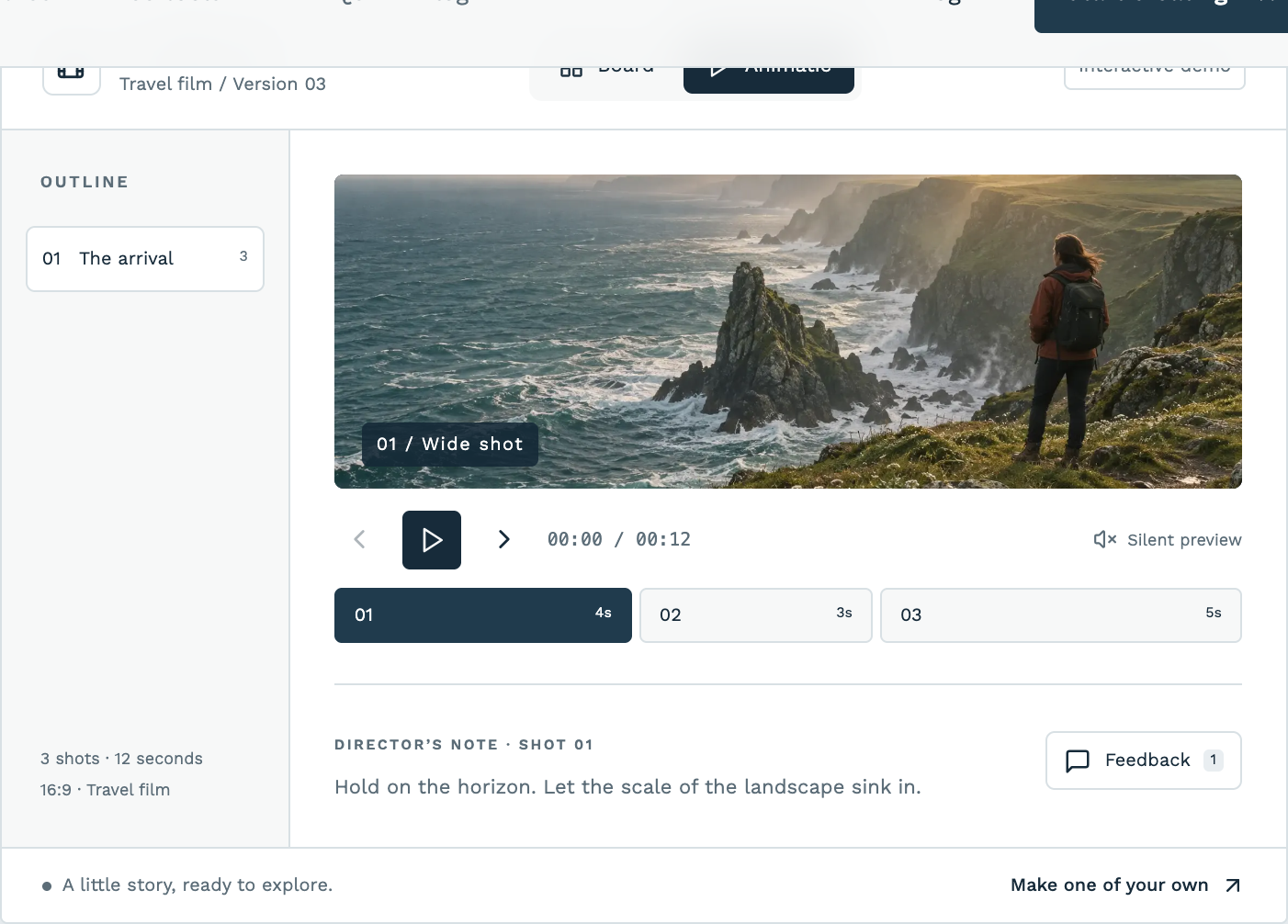
Once the frames are in order, preview them as an animatic with rough timing. Still images are enough to reveal pacing problems. In a 20-second short, one slow 6-second setup shot can make the whole cut feel late.
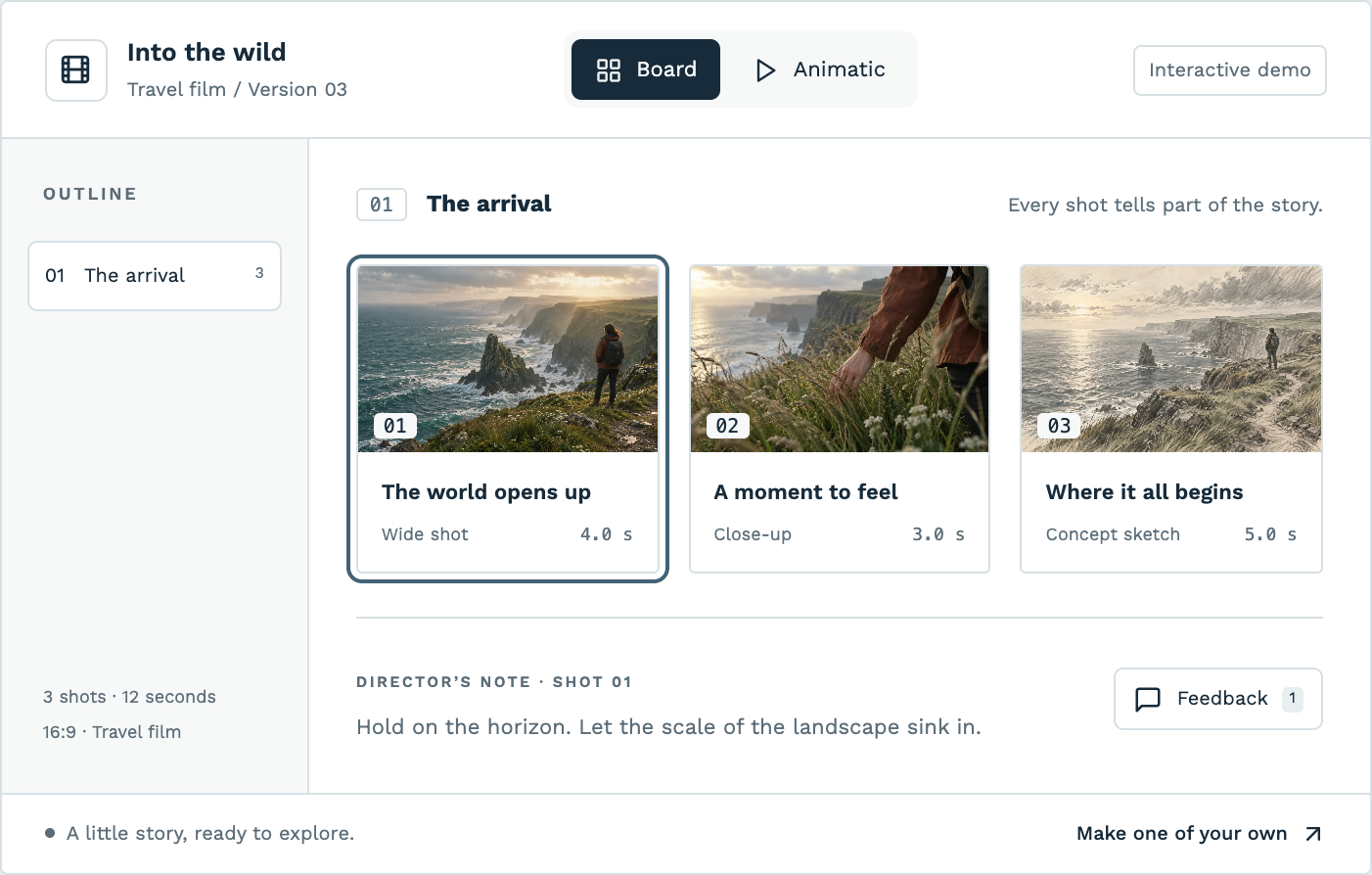
If you use StillToReel for this step, the frame board, shot durations, and animatic preview help keep visual planning tied to actual runtime. You can also compare this planning pass with the short-form video planning features if your team needs boards, notes, reviews, and exports in one place.
Problems AI storyboard frames solve for clients, teams, and editors
An AI storyboard generator is most useful when several people need to approve the same idea. The writer sees the hook. The client sees the brand moment. The editor sees the future cut. The shooter sees the setup.
Here are the production problems it solves, with the concrete fix for each one:
1. The client approves the script but not the visual idea
Problem: A script line says, “Our planner keeps your week under control.” The client signs off, then dislikes the filmed scene because they imagined an office, not a kitchen table.
Fix: Generate 3 frame options before approval: office desk, kitchen table, and coffee shop. Label each with a 6-word note: “clean corporate,” “warm home,” or “busy freelancer.”
2. The editor gets footage with no connective tissue
Problem: You film the hero shot and talking lines, but not the 1-second inserts that make cuts feel smooth.
Fix: Add a minimum of 3 transition shots to the storyboard: hand enters frame, object changes position, subject turns toward camera. Mark them as “editor coverage” in the shot notes.
3. The camera operator guesses the crop
Problem: The shot list says “film founder packing order,” but the camera operator shoots a wide angle where the product is tiny.
Fix: Use generated storyboard frames to show crop size. Write “product fills 60% of frame” or “face and box both visible” under the shot.
4. The team overbuilds a simple Reel
Problem: A 15-second concept turns into 14 planned shots, 3 locations, and a half-day setup.
Fix: Cap the storyboard at 6 shots for a 15-second edit. If the AI-filled frames show more than 2 location changes, combine shots or rewrite the concept.
5. Brand review happens too late
Problem: The client notices the wrong background, wardrobe color, or product usage after filming.
Fix: Send the storyboard for comments before the shoot. Ask reviewers to approve 4 things per frame: setting, product appearance, action, and text space.
For safe placement of captions and UI-heavy frames, use the Reel safe zone checker guide alongside your storyboard. It is easier to move text before filming than to crop around a hand, face, or product later.
Common mistakes when using an AI storyboard generator
An AI storyboard generator is a planning tool, not a director. If you accept every polished image, your storyboard can become harder to film.
Mistake 1: Letting AI add production you do not have. A generated frame may add a second model, perfect sunlight, a larger room, or props that are not on the call sheet. Fix: Add a constraint line to the prompt: “one person, phone camera, small kitchen, available light, no extra props.”
Mistake 2: Making every frame a beauty shot. Beauty shots look nice on a board, but short-form editing needs action, reaction, and detail. Fix: For every 5-shot storyboard, include 1 hook shot, 2 proof shots, 1 human reaction, and 1 call-to-action shot.
Mistake 3: Ignoring runtime. A 9-frame storyboard can be too much for a 12-second Reel if every shot needs a setup. Fix: Write durations on the board before approval. Use 1-2 seconds for inserts, 2-3 seconds for product actions, and 3-5 seconds for explanation shots.
Mistake 4: Using frames that hide the edit point. If every shot is static, the final cut may feel flat. Fix: Add movement to at least half the shots: lift, pour, reveal, tap, turn, step, open, close.
Mistake 5: Treating text as an afterthought. AI-generated frames often fill the whole vertical canvas with detail, leaving nowhere for captions. Fix: Reserve one clean zone per frame and keep overlay copy to 3-7 words.
My rule on agency boards: if the shot cannot be filmed with the people, location, and gear already planned, it is not approved yet. Pretty does not beat shootable.
A practical workflow for sketch-to-frame storyboards
Use this workflow when you need a video storyboard that a client can approve and a small team can film. It works for Reels, TikToks, Shorts, paid social concepts, and simple UGC-style ads.
Write the promise in 1 sentence. Example: “Show that this meal kit turns 20 minutes into a real dinner.”
Choose the structure. For a 20-second Reel, use 6 shots: hook, problem, process, proof, result, call to action.
Sketch each shot in 20-40 seconds. Use boxes, arrows, labels, and stick figures. Do not refine yet.
Generate the frame. Ask for practical details only: framing, subject, prop, location, lighting, and action.
Delete anything unfilmable. Remove fake props, extra locations, impossible camera angles, and unrealistic backgrounds.
Add durations. Make sure the total matches the intended video length before approval.
Preview the animatic. Watch once for pacing, once for story clarity, and once for text placement.
Send for shot-specific review. Ask for comments on individual frames, not one general comment on the whole idea.
In StillToReel, this is where branches are useful: keep one version with a direct product hook and another with a founder-led hook. Do not debate both in a meeting from memory. Put both into boards with durations and compare the first 5 seconds.
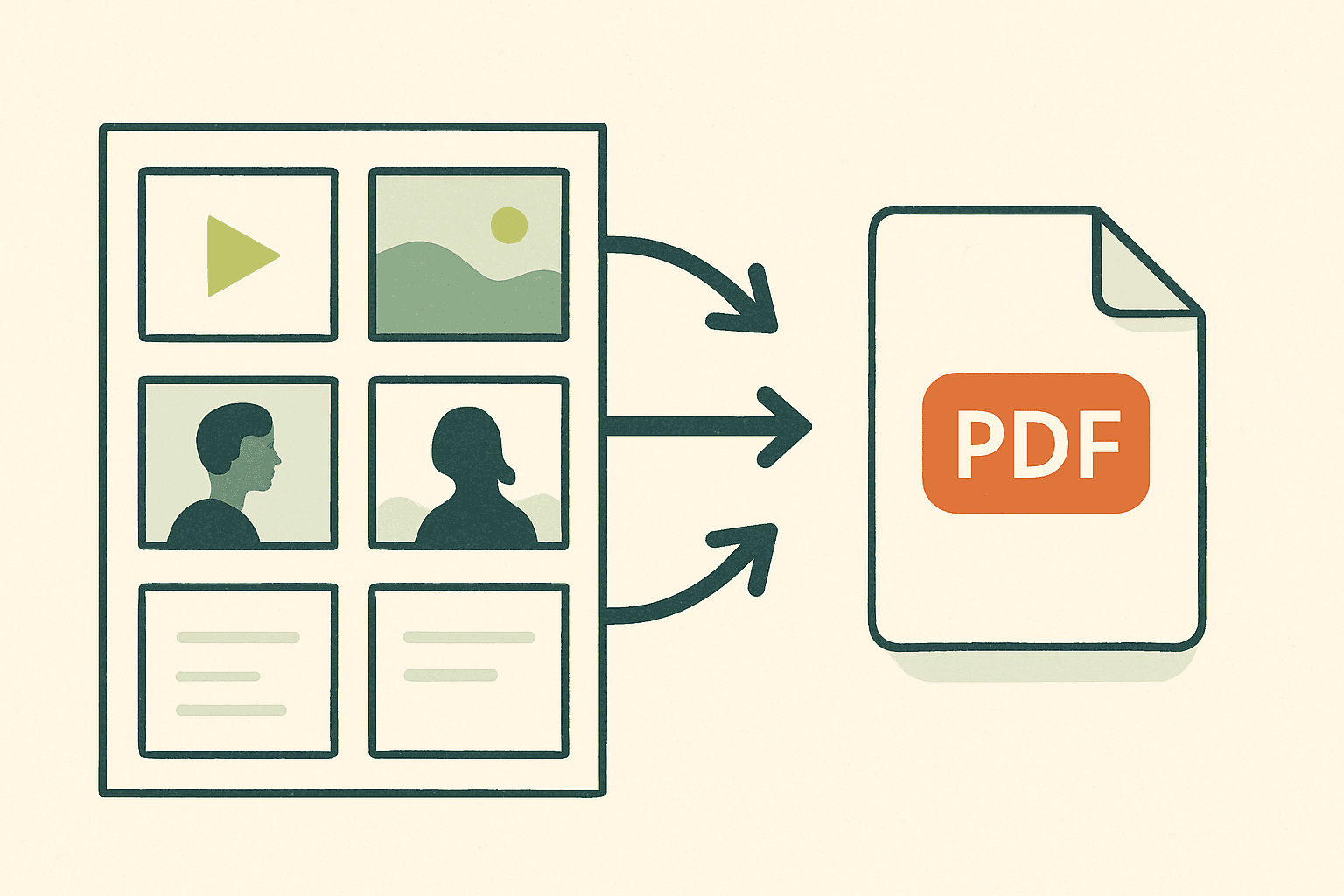
For review handoff, export the board when someone needs a static document. The PDF video plan walkthrough shows how to package shots, notes, and timing for a client or producer who prefers a shareable production document.
How to decide if an AI storyboard frame is good enough
A frame is good enough when it reduces risk for the shoot. It does not need perfect hands, perfect lighting, or perfect art. It needs to answer the production question attached to that shot.
Use this 10-point acceptance test before you put a frame into the final board:
The shot type is clear: wide, medium, close-up, or overhead.
The main subject is recognizable within 1 second.
The action can be performed in one take or repeated easily.
The location exists or can be faked with what you have.
The frame leaves space for any required text.
The product, prop, or person is large enough for a phone screen.
The shot has a reason: hook, proof, transition, emotion, or call to action.
The duration matches the amount of action in the frame.
The frame does not introduce new wardrobe, cast, or set needs by accident.
The editor could understand how this shot connects to the previous and next shot.
If a frame fails 3 or more points, redraw the sketch or simplify the prompt. If it fails only 1 point, fix it in the shot note. Example: “Use actual blue apron, not white apron shown in frame.”
This standard keeps the AI storyboard generator in its proper role. It helps you think faster, but the producer still decides what can be made.
Takeaway: use AI to make the storyboard shootable
The best use of an AI storyboard generator is not replacing planning. It is making rough planning visible sooner, so you can cut weak shots, protect text space, and give the editor better coverage.
Try this on your next short-form video: sketch 6 frames, generate each one, assign durations, then cut 1 shot before anyone films. That 15-minute pass often saves more time than another revision after the footage is already shot.
If you want a structured place for frames, notes, timing, comments, and approvals, start with the short workflow overview and adapt the process to your next board.